Build, test and verify software without making Forge complicated.
Use Forge directly from the customer panel, or connect your own application with the Forge API. For most customers, Genius Build is the easiest starting point.
5-minute quick start
- Sign in to Varion Forge and open the Forge section.
- Create a project: give it a name, choose Python or JavaScript, and describe what you want.
- Open the project and write one clear instruction in Build instruction.
- Click ⚡ Genius Build. Forge builds the files, checks them, runs tests, and can automatically repair failures.
- Review the evidence, files and console. If the result says Verified, the configured checks for that task passed.
- Use Run or Test again whenever you manually change a file.
Simple rule: if you want Forge to handle the complete build → test → repair → retest flow, use Genius Build.
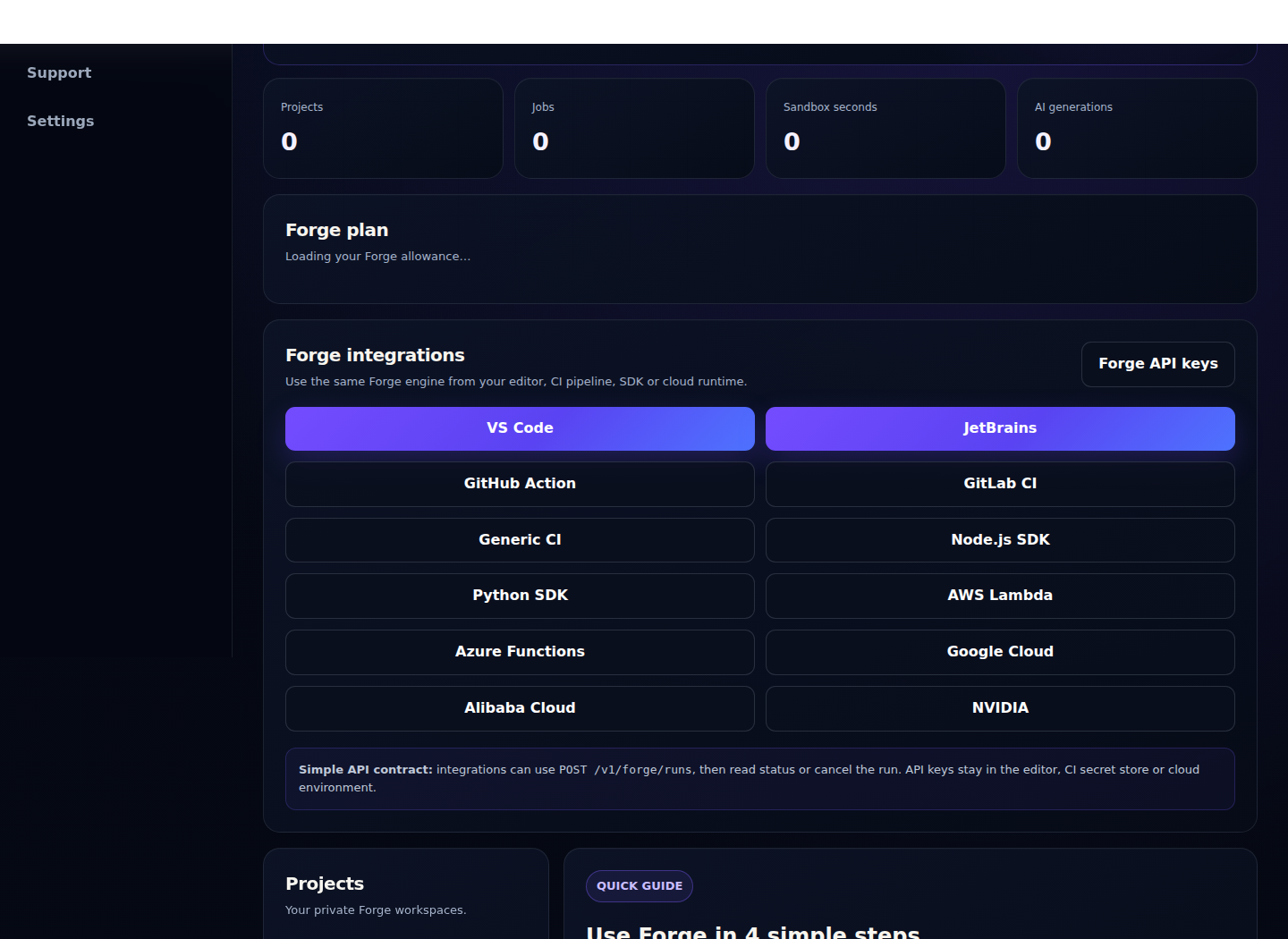
Using Forge from the customer panel
You do not need to install anything to test Forge from the web panel.
- Go to the customer panel and choose Varion Forge.
- Create a new project or select an existing project.
- Write the result you want. Be specific about the feature, expected behaviour and important tests.
- Click Genius Build for the recommended automatic workflow.
- Open the generated files to review or edit them.
- Read the Forge console and the evidence box before accepting the result.
Example instruction: “Build a Python REST API with a /health endpoint, a README and automated tests. Keep it simple and use the standard library where practical.”
What each Forge button does
⚡ Genius Build — recommended: builds or updates the project, validates it, tests it and automatically attempts repairs when validation fails.
AI Generate: generates or changes project files from your instruction. Use Run or Test afterwards when you want to validate the result yourself.
Free Starter: creates a simple starter project so you can explore Forge quickly.
Save file: saves the file currently open in the editor.
Run: runs the project inside the Forge sandbox.
Test: runs the project tests inside the Forge sandbox.
Understanding results and evidence
Verified means the required checks configured for that Forge task passed. It does not mean that any software can be guaranteed to contain no possible defect.
Genius Build evidence can show items such as build cycles, automatic repairs, test/acceptance results, sandbox runs, model calls and measured execution time. The console shows the actual run or test result.
If Forge says Needs attention or stops safely, read the failed criterion or console output, improve the instruction if needed, and run Genius Build again.
Implement Forge with the API
Use the API when you want your own application, script, developer tool or CI workflow to call Forge automatically.
- In the Varion customer panel, open the Forge section, then create a Forge product API key in its Access & integration area.
- Use this base URL:
https://api.varion.tech - Send your key in this header:
Authorization: Bearer YOUR_VARION_KEY
Keep your API key private. Put it in a server-side environment variable or secret manager. Do not place it in public browser JavaScript, a public repository or a mobile app bundle.
Simple Forge Run API — recommended
For most integrations you only need three endpoints. Send a task, save the returned run ID, then read its status/result. You can cancel a run if needed.
POST   /v1/forge/runs
GET    /v1/forge/runs/{run_id}
POST   /v1/forge/runs/{run_id}/cancel
The create request accepts task plus optional input, context and source objects/labels.
Advanced persistent-project API
Use this only when you need a persistent Forge workspace with editable files and project-specific jobs.
Advanced project endpoint: https://api.varion.tech/forge/v1/projects
POST   /forge/v1/projects
GET    /forge/v1/projects
GET    /forge/v1/projects/{project_id}
PUT    /forge/v1/projects/{project_id}/files/{file_path}
POST   /forge/v1/projects/{project_id}/starter
POST   /forge/v1/projects/{project_id}/generate
POST   /forge/v1/projects/{project_id}/genius
POST   /forge/v1/projects/{project_id}/run
GET    /forge/v1/jobs/{job_id}
GET    /forge/v1/entitlement
GET    /forge/v1/usage
Simple API flow
Your app → Forge run → Forge builds/tests/verifies → your app reads the result.
1. Start a run
curl -X POST https://api.varion.tech/v1/forge/runs \
  -H "Authorization: Bearer YOUR_FORGE_KEY" \
  -H "Content-Type: application/json" \
  -d '{
    "task": "Build a small Python API with tests and a README.",
    "input": {},
    "context": {"language": "python"},
    "source": "my-app"
  }'
Save the returned run ID.
2. Read status and result
curl https://api.varion.tech/v1/forge/runs/{run_id} \
  -H "Authorization: Bearer YOUR_FORGE_KEY"
Read the returned status, evidence and generated result. Poll until the run reaches a final state.
3. Cancel when needed
curl -X POST https://api.varion.tech/v1/forge/runs/{run_id}/cancel \
  -H "Authorization: Bearer YOUR_FORGE_KEY"
Need editable persistent files? Use the advanced /forge/v1/projects API described above instead.
Other ways to use Forge
API: best when Forge should run from your own backend, automation or CI system.
Python / Node SDK downloads: useful when you prefer a small application wrapper around the API.
GitHub Action: useful for repository and CI workflows.
VS Code / JetBrains packages: useful for developer workflows where you want Forge closer to the editor.
Cloud adapters: available for supported cloud integration workflows.
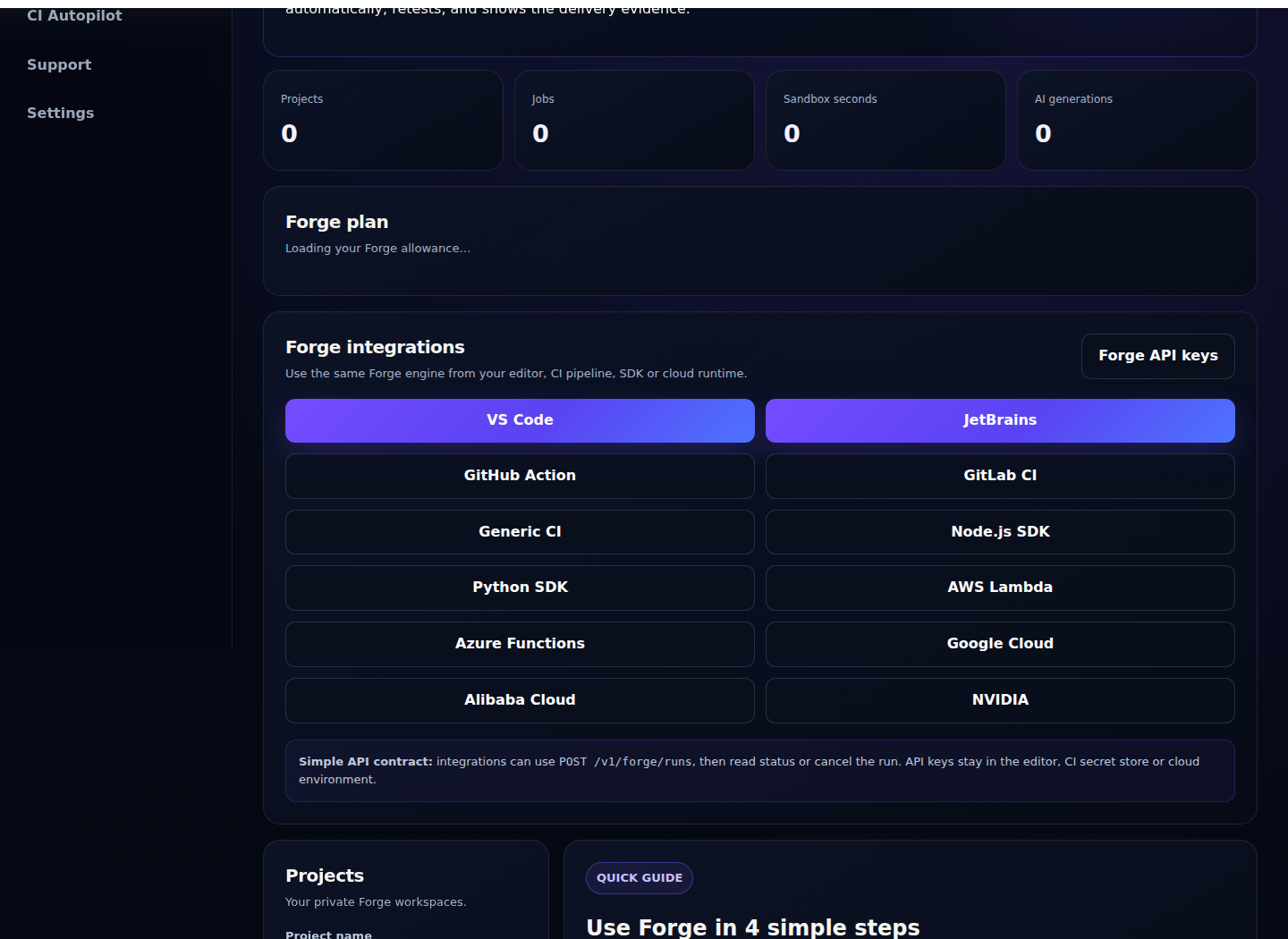
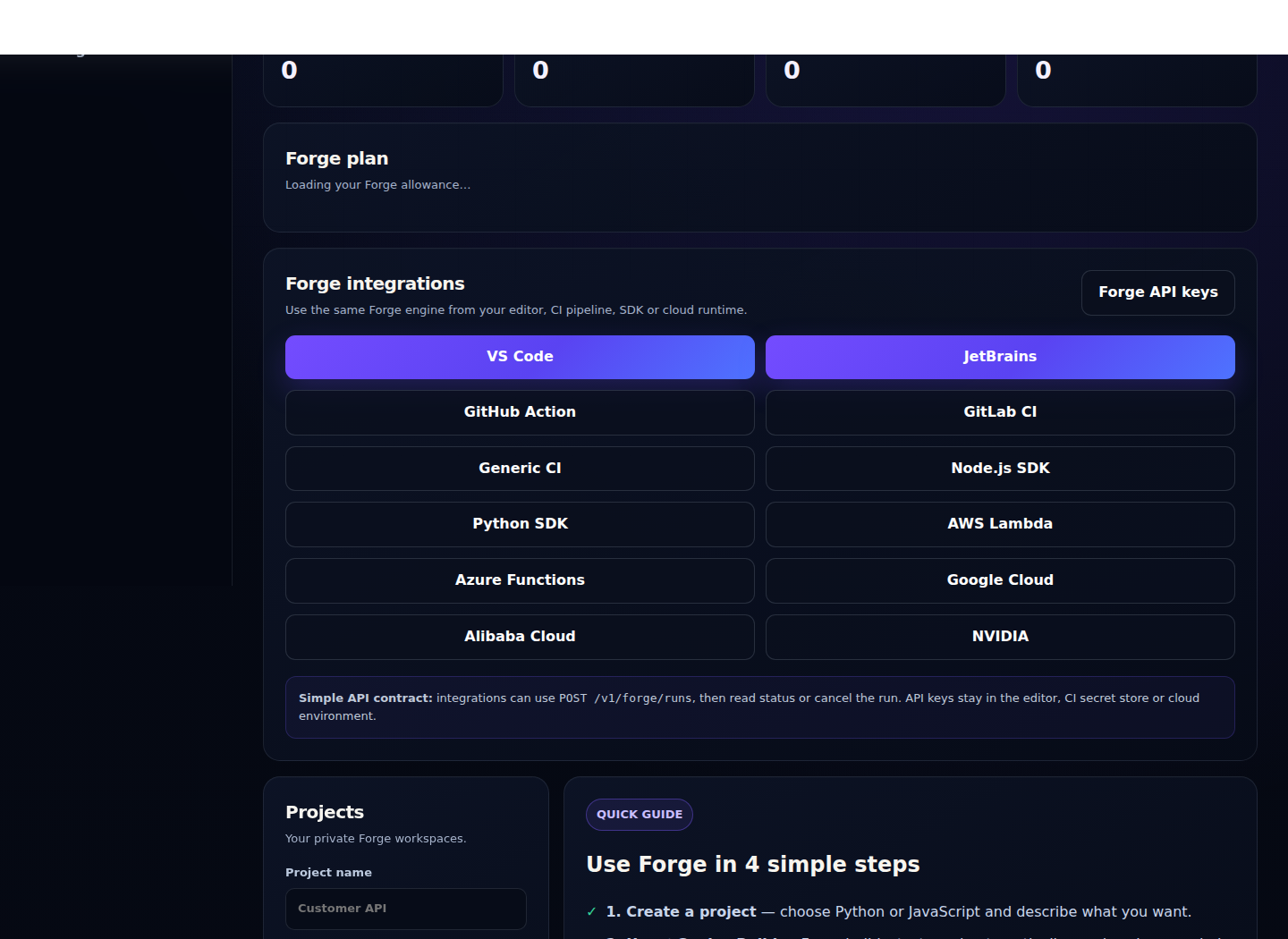
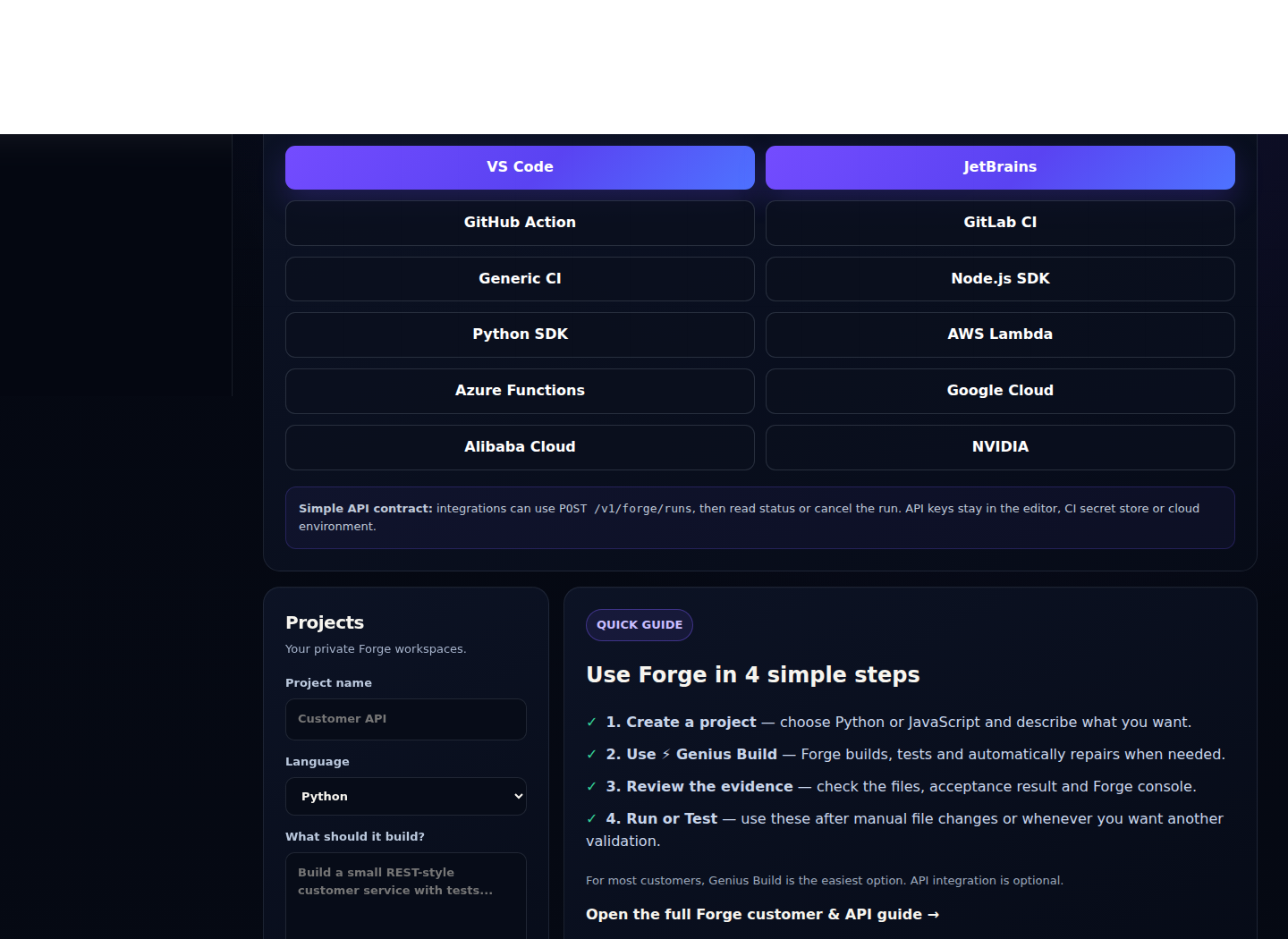
Customer panel screenshots
These screenshots show the current tested authenticated customer-panel interface.
Security basics
- Keep your Varion API key private and server-side.
- Never commit real passwords, tokens or private keys into a Forge project.
- Test a new integration on a small project before connecting it to an important production workflow.
- Review generated changes and the execution evidence before deploying them.
- Use the minimum permissions needed for CI or integration secrets.
Common problems
401 / authentication error: your Varion API key is missing, invalid or not being sent correctly. Check the Authorization header.
Project not found: confirm that you are using the project public_id belonging to the same Varion account/API key.
Validation error: check the JSON body, field names and values.
Genius Build needs attention: read the evidence and console. The failed criterion normally tells you what Forge could not verify.
Run or Test fails: read stdout/stderr in the Forge console, correct the project, then run again.
Usage limit reached: open Forge usage/package information in the customer panel and check your current entitlement.
Production checklist
- Test the workflow from the customer panel first.
- Create a dedicated API key for the integration where practical.
- Store the key as a secret/environment variable.
- Create a small test project through the API.
- Run Genius Build and confirm the evidence/result your code expects.
- Add HTTP error handling and sensible timeouts.
- Check
/forge/v1/usagein your normal monitoring or admin workflow. - Only then connect Forge to your important production workflow.
If your team only wants to test Forge, you can stay entirely inside the customer panel. API integration is optional.